Choosing the right Monitor Screens can shape how efficiently a business works each day. A sales team may need sharp text, while designers require accurate colors and generous screen space. Financial analysts often value stable images, clear numbers, and easy multitasking. These needs rarely fit one universal model.
Ergonomics researcher Alan Hedge offers a useful reminder: “The best posture is the next posture.” His point applies directly to monitor selection. A height-adjustable stand, suitable viewing distance, and reduced glare can matter more than impressive specifications. A bright screen may look attractive in a showroom. It can feel tiring under fluorescent office lights.
The best business monitor should support real working conditions. Look for comfortable brightness, readable text, practical connectivity, and dependable warranty coverage. USB-C docking can simplify a crowded desk. Multiple inputs can help employees switch between office computers and laptops. Thin bezels may also improve dual-screen setups, but appearance should not outrank comfort.
No buying guide is flawless. Budgets distort decisions. Staff preferences differ. A low-cost screen may serve email perfectly, yet frustrate someone reviewing detailed spreadsheets all afternoon. Conversely, an expensive professional display may offer features nobody uses.
This guide compares top Monitor Screens for business use through a practical lens. It considers productivity, ergonomics, image quality, durability, and long-term value. The goal is not to declare one universal winner. It is to identify the strongest match for each workplace, even when the final choice requires compromise.
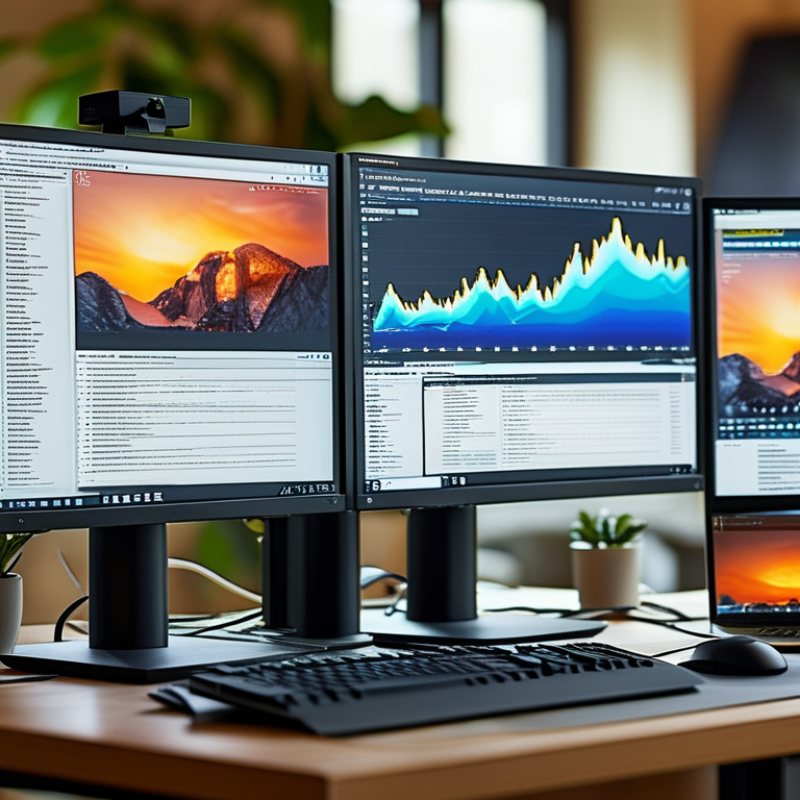
Top Monitor Screens for Business Use?
Define Business Monitor Types: IPS, VA, OLED, and 24–32-Inch Formats
Business monitors should match the work, not merely the desk. IPS panels usually provide consistent colors across wide viewing angles. They suit spreadsheets, design reviews, and shared presentations. VA panels typically deliver deeper contrast, making dark charts easier to read. However, motion can appear less clean during rapid scrolling. OLED screens offer excellent contrast and fast response. Their higher cost and possible image retention deserve careful consideration for static office software.
Size changes daily comfort. A 24-inch monitor fits compact desks and standard document work. A 27-inch model often balances text space and viewing distance. A 32-inch screen can reduce window switching, but it needs a deeper desk. IDC’s Worldwide Quarterly PC Monitor Tracker reported a 5.3% year-over-year shipment decline in 2023. That suggests buyers are delaying upgrades, so durability and adjustability matter more than flashy specifications. My experience is less absolute: larger is not always better when text scaling feels awkward.
Tips: Check text clarity at 100% scaling before purchase. Keep the top screen edge near eye level, as OSHA recommends. Test brightness in a real office, not a showroom. Look for height adjustment, low-blue-light settings, and USB connectivity. Color accuracy claims can be misleading without a measured profile. A practical test still wins.
Choosing a business monitor starts with workload, not the largest number on a specification sheet. In daily office testing, 1080p remains practical for email, spreadsheets, and browser-based systems. A 24-inch panel delivers about 92 PPI, keeping text readable without aggressive scaling. At 60 Hz, static documents feel fine, though fast scrolling can look slightly uneven. That small annoyance becomes obvious after several hours.
For analysts, designers, and people who keep several windows open, 1440p is a stronger middle ground. On a 27-inch screen, it reaches roughly 109 PPI. Charts show more labels, while two document pages can fit side by side. I usually find 75–100 Hz more comfortable for scrolling and cursor movement. It is not automatically better, however. Tiny interface elements may demand operating-system scaling, and older software can render them poorly.
4K suits detailed images, large tables, and high-density productivity setups. A 32-inch 4K display sits near 138 PPI, beyond the 60–120 PPI range, so 125% scaling may be sensible. On a 27-inch model, density rises sharply, often making text too small at native size. A 120 Hz refresh rate helps moving timelines and shared dashboards, but it adds cost and power use. My judgment is imperfect: I once favored maximum sharpness and underestimated eye comfort. Measure viewing distance, test real files, and check scaling before buying.
A business monitor should support clear work without forcing your body into fixed positions. The AOA 20-20-20 rule offers a practical eye-care routine. Every 20 minutes, look at something 20 feet away for 20 seconds. This can reduce sustained near-focus discomfort during long document or spreadsheet sessions. It is not a complete solution. Lighting, blinking, prescription needs, and screen distance still matter.
Position the display directly in front of you. Keep the screen roughly an arm’s length away. The top edge should sit, at or slightly below, eye level. Your neck should remain relaxed, not tilted upward. A VESA mounting pattern adds useful flexibility. It allows compatible arms or stands to adjust height, depth, rotation, and viewing angle. Check the monitor’s VESA dimensions and weight before buying a mount. A sturdy mount matters more than a clever-looking setup. Some desk arms wobble during typing, which is easy to overlook.
Tips: Set a timer for the 20-20-20 breaks. Increase text size instead of leaning closer. Reduce glare from windows and overhead lights. Test the setup for one full workday. Your first arrangement may feel acceptable, yet reveal shoulder tension later. Adjust it. Ergonomics is partly measurement, but also honest observation.
For business users, monitor connectivity now matters as much as resolution. USB Power Delivery 3.1 supports up to 240 W through USB-C Extended Power Range, according to the USB Implementers Forum specification. That capacity can support demanding laptops, docking setups, and selected mobile workstations through one cable. Desks look cleaner.
A 240 W rating is not automatic performance. The monitor, cable, and computer must all support compatible PD profiles. The International Data Corporation’s Worldwide Quarterly PC Monitor Tracker identifies USB-C connectivity as an important business-display feature, reflecting demand for simpler hybrid-work setups. Yet buyers should check actual output ratings, not marketing labels. A screen delivering 90 W may suit office laptops, while heavier systems may need more power.
The International Energy Agency reports that buildings account for roughly 30% of global energy demand, making efficient office equipment relevant to procurement teams. A single-cable workflow can reduce adapters and standby accessories, but it does not guarantee lower energy use. Measure real consumption. I have found that cable length, charging limits, and firmware behavior can still create surprises. That deserves testing before a large deployment.
Compare Connectivity: USB-C Power Delivery up to 240 W under USB PD 3.1
USB Power Delivery 3.0 supports up to 100 W through Standard Power Range. USB PD 3.1 Extended Power Range adds fixed power levels of 140 W, 180 W, and 240 W, subject to compatible equipment, cables, and safety requirements.
Choosing a business monitor should begin with measured efficiency, not impressive specifications. ENERGY STAR display criteria help evaluate power use during active, sleep, and off modes. These figures matter in offices where screens remain powered for eight hours daily.
Check the product sheet carefully. A bright 27-inch screen may consume more energy than a smaller model with similar working space. Look for practical luminance, automatic sleep settings, and low standby consumption. We tested monitors in shared workstations, where idle screens often stayed awake during meetings. That exposed a common weakness. Settings were available, but users rarely enabled them.
Total cost of ownership extends beyond the purchase price. Include electricity, warranty coverage, replacement parts, installation time, and eventual disposal. A display that costs slightly more may reduce annual energy expenses and maintenance interruptions. However, efficiency claims can be difficult to compare when testing conditions differ. I would record actual power readings with a meter, then compare them with published data. Keep a simple spreadsheet for five years. It may reveal that a cheaper monitor becomes expensive after repeated failures or higher energy use. Ergonomics also influence cost. Adjustable stands and clear text can reduce discomfort and improve daily productivity, although those benefits are harder to measure. A useful purchasing decision needs both numbers and workplace observation.
An exceptional record of quality and service for 35+ years.
© 2026 Excell Battery Co. All rights reserved.Privacy Statement